How to Translate Manga in Chrome
Install MetelScan in Chrome and translate your first manga page. Follow the guide to download local models, choose languages and read the translated dialogue.
Install the extension
Open the MetelScan listing in the Chrome Web Store on your computer. Select Add to Chrome, review the requested permissions, and confirm with Add extension.
Open Chrome’s Extensions menu beside the address bar and pin MetelScan so its cat icon is easy to reach. If your chapter was already open when you installed the extension, reload that tab first.
Choose your languages and local mode
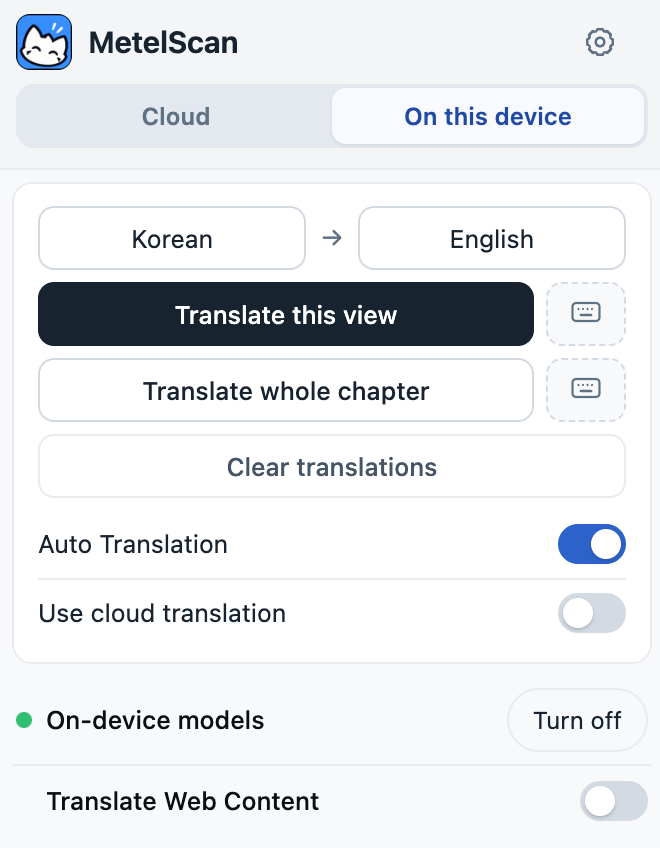
Open a chapter, then select the MetelScan icon. Choose the comic’s original language on the left and the language you want to read on the right. Japanese is the source for manga in Japanese; use Korean or Chinese for chapters written in those languages.
Select On this device. Keep Use cloud translation off for fully local translation without an account or credits. If the models row shows Set up, open it to install and select the models for your language pair.
Translate the page you can see
Let the comic image finish loading and bring its dialogue into view. Select Translate this view. MetelScan reads the text and places the translation over the comic. Keep the chapter tab open while it works; progress and completion appear in temporary popups.
Start with one view to check the language and readability. Once that looks right, use Translate whole chapter for a batch or turn on Auto Translation for that page to translate as you scroll.
See a translated example
Switch between this Japanese page and its existing English translation to see the result. For the scan → Portal → Library workflow, open the interactive homepage demo and select Start scan.