
How to Translate a Full Manga Chapter
Translate a full manga chapter with MetelScan batch mode, save pages from Recently translated to your Library, and reopen the chapter in the offline reader.
Open the chapter and check one view
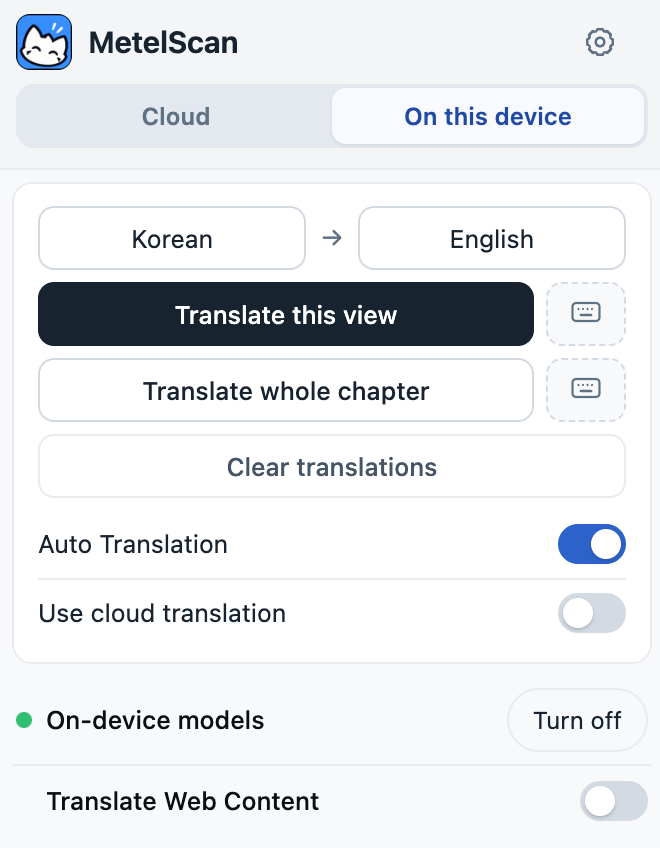
Open the chapter itself rather than the series index. Select its source and target languages in MetelScan. Choose On this device with cloud translation off for free local processing, or use Cloud with your signed-in account.
Use Translate this view first to check that the image is readable and the language is right. For local mode, complete model setup before starting the batch.
Translate the whole chapter
Select Translate whole chapter in the popup. Keep the chapter tab open while MetelScan reads and translates the available pages. Temporary progress popups show the chapter work and completion. Reader websites load images differently, so check the finished result for missing pages.
For reading as you scroll, use Auto Translation instead. It is an opt-in for the exact page where you enable it; it stays off on other pages. Returning to that page continues its existing recent entry and moves it back to the top. Turn the switch off there when you no longer want automatic translation.
Save the result to Library
Open the gear icon to enter Portal, then select Recently translated. Find the chapter and select its + action to add it to Library. Choose a new series or add it to an existing series, check the title, and confirm Add.
Recently translated is a temporary history, so add chapters you want to keep to Library. Check the saved page count: if a save reports missing pages, it has not preserved a complete chapter.
Reopen it in the offline reader
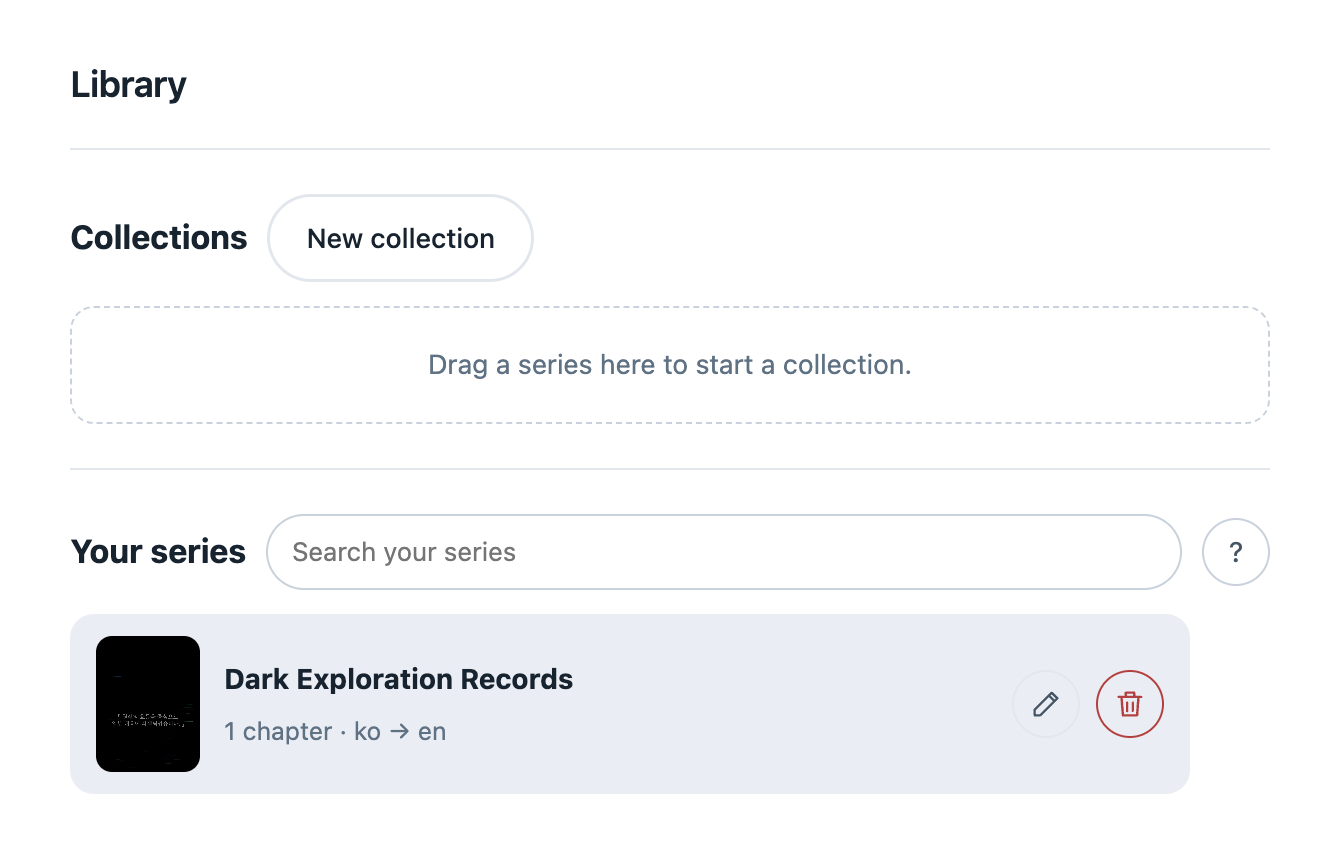
In Portal → Library, open the saved series and select its chapter. The reader offers Strip and Pages views plus zoom controls. Saved pages and translations are stored on this device, so you can reopen them without fetching the chapter again.
For image files already on your computer, Studio offers batch upload, translation, editing, and ZIP export. Studio uses cloud translation and requires an account.